To fill PDF form fields in C#, open the form with AllowEditing, call SetValue or SetChecked on doc.Form with each field’s name, and save. OnePDF checks each value against the field (its type, its options, its maximum length) and refuses one that doesn’t fit, then draws the new value into the field’s appearance so it shows in any viewer. It is pure C# with no native binaries, licensed MIT OR Apache-2.0. This page reads a form’s field names, fills every kind of field, fills from your own data while collecting bad values, and ends with flattening. Every sample was compiled and run against OnePDF 1.11.0 on .NET 10.
Before you start
dotnet new console -o PdfForms
cd PdfForms
dotnet add package RecursiveAI.OnePdf --version 1.11.0
OnePDF targets .NET 10 (net10.0). The samples fill OPM’s SF 2823, the life-insurance beneficiary form for US federal employees. It has text fields, check boxes, two radio groups, a combo box, signature fields and buttons, so every case below runs on one real file. Save it as sf2823.pdf next to the program. The names and numbers filled in are made up.
Read the form fields
Start by listing the fields: you need their exact names, and for buttons and lists, the values they accept.
using OnePdf;

using PdfDocument doc = PdfDocument.Open("sf2823.pdf");
PdfAcroForm form = doc.Form ?? throw new InvalidOperationException("The file has no form.");
Console.WriteLine($"{form.TerminalFields.Count()} fields, XFA: {form.HasXfa}");

foreach (PdfFormField field in form.TerminalFields)
{
    // The values a field accepts: options for combo and list boxes, on-states for check boxes and radio buttons.
    IEnumerable<string> accepts = field.Kind switch
    {
        PdfFieldKind.ComboBox or PdfFieldKind.ListBox => field.Options.Select(o => o.Export),
        PdfFieldKind.CheckBox or PdfFieldKind.RadioButton => field.Widgets
            .SelectMany(w => w.GetDictionary("AP")?.GetDictionary("N")?.Keys ?? [])
            .Where(state => state != "Off")
            .Distinct(),
        _ => [],
    };
    string max = field.MaxLength is int n ? $" (max {n})" : "";
    Console.WriteLine($"{field.FullName,-22} {field.Kind,-12} {string.Join(" | ", accepts)}{max}");
}
61 fields, XFA: False
Bene 1.0               Text
not assigned           CheckBox     Yes
Clear                  PushButton
Print copies           ComboBox     Part 1 - Original | Part 2 - Duplicate
Witness Signature 1    Signature
Name                   Text
DOB                    Text
SSN                    Text          (max 11)
Type of Insured        RadioButton  Employee | Retiree | Compensationer
I Am                   RadioButton  Insured | Assignee
TerminalFieldslists the fields that hold values. Names are fully qualified (parent.child):Bene 1.0is the child0of a field namedBene 1.- A check box or radio button has a name for each “on” state, stored as a key of its widgets’ normal appearance (
/AP /N). That is the value to set: hereYesfor the check boxes andEmployee,RetireeorCompensationerfor the radio group. Don’t guesstrueor1. HasXfatells you whether the file also carries an XFA form. OnePDF fills AcroForm fields, so an XFA-only form can’t be filled.- The same loop reads a filled form:
field.Valueis the current value, andfield.Valuesgives every selection of a multi-select list.
Fill text fields, check boxes, radio buttons and lists
using OnePdf;

using (PdfDocument doc = PdfDocument.Open("sf2823.pdf", new PdfOpenOptions { AllowEditing = true }))
{
    PdfAcroForm form = doc.Form!;

    form.SetValue("Name", "Lovelace, Ada");                 // text
    form.SetValue("DOB", "12/10/1985");
    form.SetValue("SSN", "123-45-6789");
    form.SetValue("Type of Insured", "Employee");           // radio group: one of its on-states
    form.SetValue("Bene 1.0", "Byron King");
    form.SetValue("Relationship 1.0", "Son");
    form.SetValue("amount 1.0", "100%");
    form.SetValue("Total", "100%");
    form.SetValue("I Am", "Insured");
    form.SetChecked("not assigned", true);                  // check box
    form.SetChecked("witnessed", true);
    form.SetChecked("no beneficiary", true);
    form.SetValue("Print copies", "Part 2 - Duplicate");    // combo box: export value or display text

    doc.Save("filled.pdf");                                 // still a fillable form
}

// Read the values back.
using (PdfDocument filled = PdfDocument.Open("filled.pdf"))
{
    foreach (string name in new[] { "Name", "Type of Insured", "not assigned", "Print copies" })
        Console.WriteLine($"{name} = {filled.Form!.FindField(name)!.Value}");
}
Name = Lovelace, Ada
Type of Insured = Employee
not assigned = Yes
Print copies = Part 2 - Duplicate
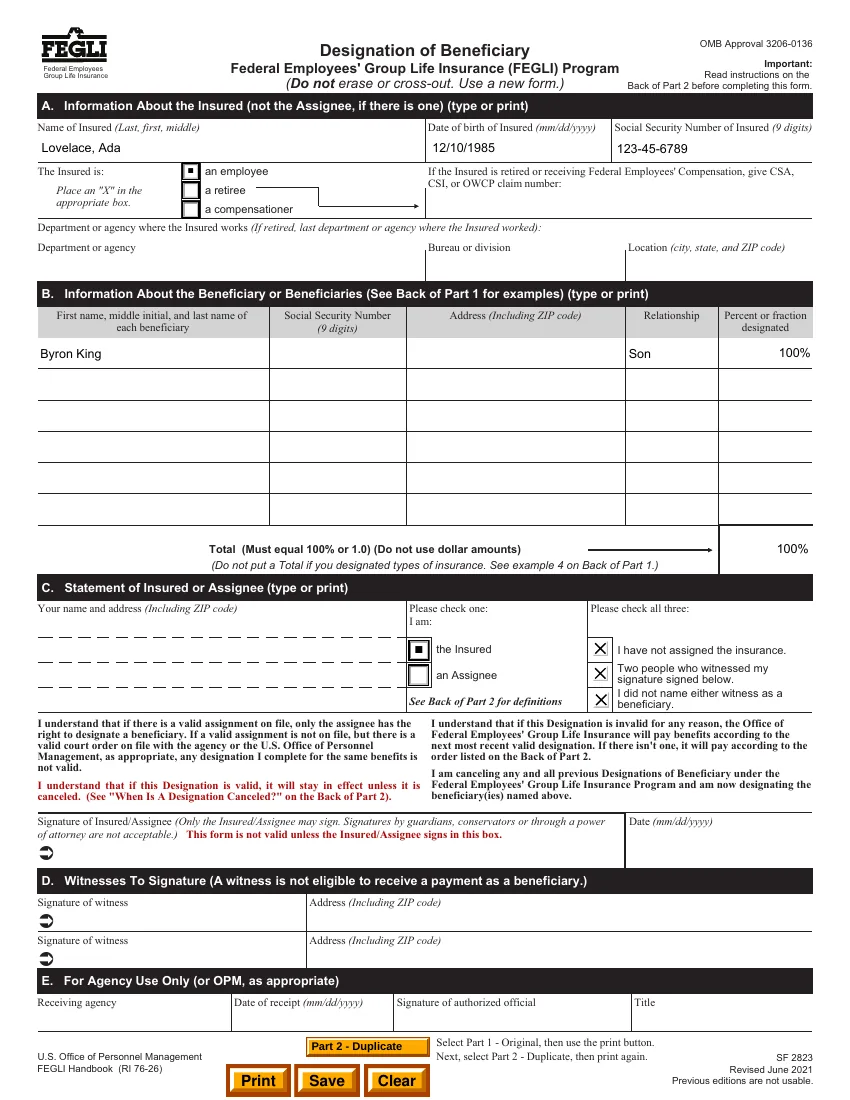
The page above is filled.pdf as a viewer draws it. OnePDF built and stored each field’s appearance, so the values show without the viewer redrawing the fields, and the file is still a form anyone can edit. To add the changes after the original bytes instead of rewriting the file, save with doc.SaveIncremental(stream).
What each kind of field accepts
| Field kind | Call | Value |
|---|---|---|
| Text | SetValue(name, text) | Any text up to the field’s maximum length. null clears it. Comb, multi-line and password fields are drawn from the field’s flags. |
| Check box | SetChecked(name, true) or SetValue(name, state) | An on-state such as Yes, or Off. SetChecked(true) picks the first widget’s on-state. |
| Radio group | SetValue(name, state) | One of the group’s on-states. Off or SetChecked(name, false) clears the group. |
| Combo box, list box | SetValue(name, choice) | An option’s export value or display text. An editable combo box takes any text. |
| Multi-select list box | SetValues(name, choices) | Several options, stored in option order. |
| Push button, signature | None | Refused with WrongType. Signing is its own operation. |
The same calls exist on each field: form.FindField(name)?.SetValue(...). Reset and ResetAll return fields to their defaults.
Fill a form from your data and catch bad values
In a real program the values come from a database row or a request, and some won’t fit the form. Each call that can’t store its value throws PdfFormValueException and changes nothing, so you can collect the problems and decide what to do:
using OnePdf;

// Values from your own data: a database row, a request body, a CSV line.
var values = new Dictionary<string, string>
{
    ["Name"] = "Hopper, Grace",
    ["DOB"] = "12/09/1986",
    ["SSN"] = "123-45-67890",            // 12 characters: the field allows 11
    ["Type of Insured"] = "Contractor",  // not one of the radio group's states
    ["not assigned"] = "Yes",            // a check box's on-state
    ["Middle name"] = "Brewster",        // no such field
};

using PdfDocument doc = PdfDocument.Open("sf2823.pdf", new PdfOpenOptions { AllowEditing = true });
PdfAcroForm form = doc.Form!;

var problems = new List<string>();
foreach ((string name, string value) in values)
{
    try
    {
        form.SetValue(name, value);
    }
    catch (PdfFormValueException e)
    {
        problems.Add($"{name}: {e.Reason}");   // the refused call changed nothing
    }
}

if (problems.Count > 0)
    Console.WriteLine(string.Join(Environment.NewLine, problems));
doc.Save("filled-from-data.pdf");
SSN: TooLong
Type of Insured: NotInOptions
Middle name: UnknownField
The name, date of birth and check box were stored. The other three were refused, each for its own reason:
Reason | When |
|---|---|
UnknownField | No field has that fully qualified name. |
WrongType | The call doesn’t fit the field, such as a value for a push button or a signature. |
ReadOnly | The field is read-only. PdfFillOptions.OverrideReadOnly fills it anyway. |
NotInOptions | The value isn’t one of a list’s options or a button’s on-states. |
TooLong | The text is longer than the field’s maximum length. PdfFillOptions.TruncateToMaxLength cuts it instead. |
NotMultiSelect | Several values for a field that isn’t a multi-select list box. |
NotTerminal | The name is a parent field. Fill its children. |
Keep the form fillable or flatten it
A filled form stays editable: anyone can change the values in a viewer. To make them permanent, flatten the document after filling, with doc.Flatten() before Save. The values become page content and the fields are removed. Flattening, partial flattening and leaving out the Print and Clear buttons are covered in flatten a PDF form in C#. To fill one copy per record and combine them into one file, see merge PDF files in C#, which also shows how OnePDF keeps two filled copies of the same form apart.
What OnePDF doesn’t do when filling
- Scripts never run. Calculate, format, validate and keystroke scripts are left as data. A total field isn’t recomputed and a date isn’t reformatted: values are stored exactly as you give them, so format them yourself.
- XFA data isn’t filled. Forms that are XFA only can’t be filled. On forms that carry both, OnePDF fills the AcroForm fields, and flattening removes the XFA along with the form.
- No new fields. OnePDF fills the fields a form has. It doesn’t add fields to a PDF.
Every rule for each field type is in forms, and how appearances are drawn is in appearance generation.
The same with iText
iText fills fields through PdfAcroForm: GetField(name) returns the field and SetValue sets it. iText’s knowledge base makes the same point about check boxes: “You shouldn’t ‘guess’ for the possible values. You need to use a value that is stored in the PDF” (how to check a check box). Written from those pages and run with iText 9.8.0 (AGPL or commercial):
using iText.Forms;
using iText.Kernel.Pdf;

using PdfDocument pdf = new PdfDocument(new PdfReader("sf2823.pdf"), new PdfWriter("filled-itext.pdf"));
PdfAcroForm form = PdfAcroForm.GetAcroForm(pdf, true);

form.GetField("Name").SetValue("Lovelace, Ada");
form.GetField("Type of Insured").SetValue("Employee");
form.GetField("not assigned").SetValue("Yes");
form.GetField("Print copies").SetValue("Part 2 - Duplicate");
It fills the same four fields. The file’s producer then ends with “modified using iText® Core 9.8.0 (AGPL version)”, which the AGPL edition requires: see iText license cost and AGPL terms. PDFsharp’s FAQ describes its AcroForm support as limited.
Where next
- Fill and flatten form fields, the cookbook recipe.
- Flatten a PDF form in C# once the values are in.
- Extract text from a PDF in C# to read values from forms that were flattened or printed.
- Getting started with OnePDF.