You can do C# game development without an editor: the whole game is C# source plus a few image files, and you build, run, test and ship it from a terminal and the code editor you already use. There are two ways to work like that. A framework such as MonoGame, FNA or raylib-cs gives you a window, input and drawing, and you write the rest of the engine. An engine without an editor, such as onegame, gives you the engine too, just with no scene view around it. This tutorial builds a small, complete game the second way: a basket that catches falling stars, with sprites, keyboard and gamepad controls, a score, three tests and a native Linux build. Every command and output below was run with onegame 1.2.0 on .NET 10.
What “without an editor” means
An editor-first engine keeps part of your game in its own files: scenes, prefabs, inspector values, animation graphs. Without an editor, all of that is code you can read, diff and review. Noel Berry, who works this way, describes using SDL3 under his own small C# layer and argues that making games “from scratch” isn’t the impossible task people assume (Making Video Games in 2025). The cost of the framework route is that you write the loop, the asset loading, the input mapping, the saving and the testing yourself.
onegame keeps the code-only workflow and builds those parts in. A game is entity classes with synced state, a fixed 60-tick simulation that the compiler keeps deterministic, and view code that draws. The onegame command builds it, runs it with or without a window, runs its tests and exports it. What replaces the editor’s scene view and inspector is code, YAML test scenarios, screenshots and live control from a terminal. For the wider choice between engines and frameworks, see C# game engines compared.
Set up a project
You need the .NET 10 SDK. Install the tool and create the game:
dotnet tool install -g RecursiveAI.OneGame.Cli --version 1.2.0
onegame new starcatch
cd starcatch
created /tmp/games/starcatch
  cd /tmp/games/starcatch
  onegame build
  onegame run --headless --frames 60
  onegame test
onegame new writes a working starter game, a ship you can fly (it’s walked through in Your first game). The project file is the whole build setup: the RecursiveAI.OneGame.Sdk package brings the engine, the analyzers and the export targets from nuget.org.
<Project Sdk="RecursiveAI.OneGame.Sdk/1.2.0">

  <PropertyGroup>
    <AssemblyName>Starcatch</AssemblyName>
    <RootNamespace>Starcatch</RootNamespace>
  </PropertyGroup>

</Project>
This tutorial replaces the ship. Delete art/ and everything in scenarios/, then add two pictures: art/basket.png, 48 × 20 pixels, and art/star.png, a strip of four 16 × 16 frames of a star getting smaller and larger again. Draw your own, or download the ones used here: basket.png and star.png.


The whole game in one file
Replace Game.cs with this. The scaffold’s Program.cs, which starts the game, stays as it is.
using System;
using System.Linq;
using System.Numerics;
using OneGame.Core;
using OneGame.Host;
using OneGame.Platform;
using OneGame.Render2D;
using OneGame.UI;

namespace Starcatch;

/// <summary>The basket the player slides along the bottom of the screen.</summary>
[Entity]
public partial class Basket : Entity, IView2D
{
    public const int Row = 140;    // world units below the center of the screen
    public const int Edge = 280;   // how far it may go left or right
    public const int Speed = 6;    // world units per tick

    [Synced] public partial int X { get; private set; }
    [Synced] public partial int Dir { get; private set; }

    [Command]
    public void Move(int dir) => Dir = Math.Sign(dir);

    protected override void OnTick() => X = Math.Clamp(X + Dir * Speed, -Edge, Edge);

    [View]
    public void Draw(Draw2D d) => d.Sprite("art/basket.png", new Vector2(X, Row), scale: 2);
}

/// <summary>A falling star. It is caught if it crosses the basket's row close enough to the basket.</summary>
[Entity]
public partial class Star : Entity, IView2D
{
    public const int Reach = 40;

    [Synced] public partial Fixed X { get; private set; }
    [Synced] public partial Fixed Y { get; private set; }
    [Synced] public partial Fixed Speed { get; private set; }

    public void Drop(int x, Fixed speed) => (X, Y, Speed) = (x, -190, speed);

    protected override void OnTick()
    {
        var before = Y;
        Y += Speed;
        var sky = World!.Entities.OfType<Sky>().First();
        if (before < Basket.Row && Y >= Basket.Row)
        {
            var basket = World.Entities.OfType<Basket>().First();
            if (Fixed.Abs(X - basket.X) <= Reach)
            {
                sky.Caught();
                World.Remove(Id);
            }
        }
        else if (Y > 190)
        {
            sky.Missed();
            World.Remove(Id);
        }
    }

    // View state: the sheet is cut once from art/star.png (four 16 x 16 frames) and never synced.
    private SpriteSheet? _sheet;

    [View]
    public void Draw(Draw2D d)
    {
        if (_sheet is null)
        {
            _sheet = SpriteSheet.Grid(d.Texture("art/star.png"), 16, 16);
            _sheet.AddClip("twinkle", 0, 4, 8, true);
        }

        d.Sprite(_sheet, "twinkle", new Vector2(X.ToSingle(), Y.ToSingle()), scale: 2);
    }
}

/// <summary>The sky drops a star every DropEvery ticks, keeps the score and ends the game after three misses.</summary>
[Entity]
public partial class Sky : Entity, IView2D
{
    public const int DropEvery = 45;

    [Synced] public partial int Cooldown { get; private set; }
    [Synced] public partial int Score { get; private set; }
    [Synced] public partial int Lives { get; private set; }

    public void Start() => (Cooldown, Score, Lives) = (0, 0, 3);

    protected override void OnTick()
    {
        if (Lives == 0 || ++Cooldown < DropEvery)
        {
            return;
        }

        Cooldown = 0;
        var rng = World!.Rng["stars"];
        World.Add(new Star()).Drop(rng.NextInt(-Basket.Edge, Basket.Edge + 1), rng.NextFixed(2, 4));
    }

    public void Caught() => Score++;

    public void Missed() => Lives = Math.Max(0, Lives - 1);

    [Command]
    public bool Restart()
    {
        if (Lives > 0)
        {
            return false;
        }

        foreach (var star in World!.Entities.OfType<Star>().ToList())
        {
            World.Remove(star.Id);
        }

        Start();
        return true;
    }

    [View]
    public void Draw(Draw2D d)
    {
        d.FillRect(new Rect(-320, 164, 640, 16), Color.Rgb(0x2E4A3A));
        if (Lives == 0)
        {
            d.Text("Game over. Press Enter to play again.", Vector2.Zero, 20, anchor: new Vector2(0.5f, 0.5f));
        }
    }

    [View]
    public string Label() => $"Score {Score}   Lives {Lives}";
}

public sealed class StarcatchGame : GameDefinition
{
    public override string Name => "starcatch";

    public override void RegisterEntities(EntityRegistry registry) => OneGame.Generated.Starcatch.EntityTypes.Register(registry);

    public override void Setup(World world)
    {
        world.Add(new Sky()).Start();
        world.Add(new Basket());
    }

    // A known starting world for tests: one star dropping over the right half of the screen at 4 units a tick.
    public override void DefineFixtures(FixtureSet fixtures) =>
        fixtures.Add("falling-star", world =>
        {
            world.Add(new Sky()).Start();
            world.Add(new Basket());
            world.Add(new Star()).Drop(120, 4);
        });

    public override void DefineActions(ActionMap actions) =>
        actions.Context("play", c => c
            .Vector("move", Bind.Arrows, Bind.Wasd, Bind.LeftStick)
            .Button("restart", Bind.Key(Key.Enter), Bind.Pad(GamepadButton.Start)));

    // View code: read the actions every frame, send a command when something changes.
    public override void OnEachFrame(GameInstance game)
    {
        var basket = game.World.Entities.OfType<Basket>().First();
        var dir = (int)MathF.Round(game.Actions.Vector("move").X);
        if (dir != basket.Dir)
        {
            basket.Send.Move(dir);
        }

        if (game.Actions.Pressed("restart"))
        {
            SkyOf(game).Send.Restart();
        }
    }

    public override void DefineScreens(ScreenSet screens) =>
        screens.Add("main", game => Ui.Label(() => SkyOf(game).Label()).Named("score").Padding(Length.Px(8)).TextColor(Color.White));

    private static Sky SkyOf(GameInstance game) => game.World.Entities.OfType<Sky>().First();
}
State and the simulation
Each class marked [Entity] is a game object. Its [Synced] partial properties are its state. Source generators complete them with change tracking, snapshots and network deltas, and their private setters mean only the entity’s own simulation code writes them. OnTick runs exactly 60 times per second of game time, whatever the frame rate, so speeds are units per tick and there is no elapsed time to multiply by.
- The basket moves 6 units a tick in the direction it was last told, clamped to the screen. Integers are fine in simulation code.
- A star falls at a fixed-point speed.
Fixedis a 64-bit fixed-point number, used because afloatin simulation code is a compile error: float results can differ between machines, and fixed-point results can’t. The star checks for the basket only on the tick it crosses the basket’s row, then removes itself withWorld.Remove(Id). - The sky drops a star every 45 ticks. Its position and speed come from
World.Rng["stars"], a random stream seeded from the world’s seed, so the same seed drops the same stars. Deterministic game simulation in C# covers what the compiler rejects and why.
Collision here is a distance check you write yourself. onegame has no physics engine, and for a game like this one you don’t need one.
Drawing with Draw2D
An entity that implements IView2D draws itself: the engine calls its Draw(Draw2D d) method every frame. d.Sprite("art/basket.png", …) loads the picture on first use, caches it, and draws it centered on the point you give, here at twice its size. World point (0, 0) is the center of the screen and y grows downward. The star cuts its picture into a SpriteSheet of four frames and plays the twinkle clip at 8 frames per second. Clips run on view time, so the animation is smooth on screen and identical in screenshots and replays. The sky fills a rectangle for the ground and writes “Game over” with d.Text. The engine batches all of it.
Draw code is view code. It’s marked [View], it may use floats, and it can read state but not write it: assigning X inside Draw is a compile error. The star’s _sheet field is view state, never synced. In a Debug build, saving a picture while the game runs replaces it in the next frame.
Input as actions
DefineActions declares the controls once: a move vector bound to the arrow keys, WASD and the left stick, and a restart button on Enter or the gamepad’s Start. The map also supports rebinding, with a ready-made bindings list in ActionUi, and tests drive the same actions by name. OnEachFrame is view code too. It reads the actions and sends the basket a Move command when the direction changes. Commands are the only way input reaches the simulation, which is why a recording, a replay and a network client all see the same game. The score is a UI label, rebuilt every frame from Sky.Label() and named score so tests can read it.
Run it
onegame run opens the game in a window. To check it from a terminal or CI, run it headless for 30 seconds of game time, twice with seed 1 and once with seed 2:
onegame run --headless --frames 1800 --seed 1 --json
onegame run --headless --frames 1800 --seed 1 --json
onegame run --headless --frames 1800 --seed 2 --json
{"ok":true,"game":"starcatch","headless":true,"frames":1800,"tick":1800,"hash":"c3f88ebbec2ae168","width":1280,"height":720}

{"ok":true,"game":"starcatch","headless":true,"frames":1800,"tick":1800,"hash":"c3f88ebbec2ae168","width":1280,"height":720}

{"ok":true,"game":"starcatch","headless":true,"frames":1800,"tick":1800,"hash":"c8beb185828c2035","width":1280,"height":720}
hash is a hash of the whole world after the last tick. The same seed gives the same stars and the same hash. A different seed gives a different game. That is what lets the tests below assert exact numbers.
Test it without a window
A scenario is a test written as YAML. It starts the real game, drives it through the same actions a player uses, steps time and checks the result. The falling-star fixture in Game.cs starts the world with one star over the right half of the screen. This scenario holds right for 20 ticks, lets go, and checks that the star landed in the basket:
name: catch-a-star
description: Slide right under a falling star and catch it.
fixture: falling-star
steps:
  - action: { name: move, state: down, x: 1, y: 0 }
  - step: 20
  - action: { name: move, state: up }
  - step: 70
expect:
  - state: { entity: Basket, property: X, equals: 120 }
  - state: { entity: Sky, property: Score, equals: 1 }
  - state: { entity: Sky, property: Lives, equals: 3 }
  - ui: { id: score, text: "Score 1   Lives 3" }
Twenty ticks at 6 units is 120, right under the star. The next one stands still for 900 ticks (15 seconds), checks the game is over, then presses restart:
name: game-over
description: Standing still loses three stars and ends the game; Enter starts it again.
steps:
  - step: 900
  - expect:
      state: { entity: Sky, property: Lives, equals: 0 }
  - action: restart
  - step: 2
expect:
  - state: { entity: Sky, property: Lives, equals: 3 }
  - state: { entity: Sky, property: Score, equals: 0 }
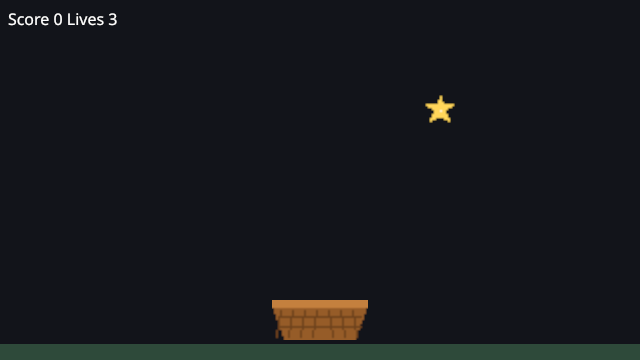
The last one checks the drawing. It compares a frame with a reference picture, and checks that the star sheet loaded:
name: looks
description: The basket, the ground and a star, compared with a reference picture.
window: 640x360
fixture: falling-star
steps:
  - step: 30
expect:
  - capture: { reference: refs/falling-star.png, size: 640x360, tolerance: 2, max-diff: 0.001 }
  - asset: { path: art/star.png, state: ready }
The first run with --update-references writes scenarios/refs/falling-star.png. Look at it once, and every later run compares against it:
onegame test --scenario scenarios/looks.yaml --update-references
onegame test
PASS catch-a-star (42 ms, tick 90, hash c834584933efb52e)
PASS game-over (4 ms, tick 902, hash 84bf155a8ea3bc28)
PASS looks (336 ms, tick 30, hash 2f75179e169e7a69)
3 passed, 0 failed
The two state scenarios need no GPU. The screenshot needs a Vulkan driver, and a software one is fine. All three run in CI as they run here. Automated game testing goes further: failure output, JSON for CI, record and replay, and C# tests.
Ship it
Export a Release build for Linux. It is compiled ahead of time with NativeAOT, so the player needs no .NET install:
onegame export --target linux
export/starcatch-1.0.0-linux-x64/run.sh --headless --frames 1800 --seed 1 --json
exported starcatch 1.0.0 for linux-x64 (nativeaot): 7 files, 7654 KiB
  folder:  /tmp/games/starcatch/export/starcatch-1.0.0-linux-x64
  archive: /tmp/games/starcatch/export/starcatch-1.0.0-linux-x64.tar.gz (3701 KiB)
  warning glibc_too_new: Starcatch needs glibc 2.38, newer than 2.31 in Steam's Linux runtime (and so on the Steam Deck). Build on an older system, or inside the Steam Linux Runtime SDK: see docs/exporting.md.
{"ok":true,"game":"starcatch","headless":true,"frames":1800,"tick":1800,"hash":"c3f88ebbec2ae168","width":1280,"height":720}The exported program, built by a different compiler from the one onegame run uses, reaches the same hash for seed 1. The folder holds the program, a run.sh launcher, the art and fonts folders, and a third-party notices file. The glibc_too_new warning matters only if you ship on Steam: Steam’s Linux runtime, which the Steam Deck uses, has an older glibc than the machine this was built on. Steam and the Steam Deck shows how to build for it. --target win and --target osx export for Windows and macOS (Exporting).
Limits at 1.2.0
- No physics engine. Movement and collision are your own simulation code, in integers or
Fixed. - No editor, by design. Levels and tuning are code or data files.
- Web, Android and iOS exports need an engine checkout. From the NuGet packages, games export for Linux, Windows and macOS (Export for the web, Android and iOS).
Draw2Dcovers sprites, sheets, shapes, text and a following camera. Tilemaps and post-processing use the lower-level 2D renderer.
Where to go next
- Add a second player over the network with the same entity code: client-side prediction in C#.
- Coming from MonoGame? onegame for MonoGame developers maps
Update,DrawandSpriteBatchto the code above. - Build menus and a HUD with styled UI screens and controller navigation: the UI guide.
- Start from the docs: Getting started.