If you know MonoGame, you already work the way onegame expects: in C#, in your own editor, with no scene editor in between. What changes is who owns the loop. In MonoGame you write Update and Draw and keep game state in fields however you like. In onegame the engine runs the loop at a fixed 60 ticks per second, game state lives in entity classes with [Synced] properties, input is declared as actions that send commands, and entities draw themselves with sprites from view code. In exchange you get replays, headless tests, client/server sync and NativeAOT exports without writing them. This page maps the concepts, then ports a small MonoGame-style loop. It is a map, not a line-by-line migration: the two models differ too much for that. Every onegame sample was run against onegame 1.2.0 on .NET 10.
The concept map
| MonoGame | onegame | What changes |
|---|---|---|
Game subclass (API) | GameDefinition subclass | It declares entity types, the starting world, screens and fixtures. It doesn’t run the loop. |
Initialize, LoadContent | Setup(World); assets by path | Setup adds the starting entities. Fonts in fonts/ load by default. A picture loads and is cached the first time a view draws it by path, and a Debug build reloads it when the file changes. |
Update(GameTime), with IsFixedTimeStep and TargetElapsedTime | OnTick() on each entity | Always a fixed step, 60 ticks per second. There is no elapsed time to multiply by: a tick is the unit. |
Fields on your Game or your own classes | [Synced] partial properties on [Entity] classes | Generators add change tracking, snapshots and network deltas. Setters are private to the entity. |
Keyboard.GetState() polled in Update | Actions from DefineActions, read in OnEachFrame | Actions have default bindings for keys, gamepads and touch, and players can rebind them. The view reads them and sends a [Command]. The simulation never reads a device, so replays, tests and the network carry commands. |
Draw(GameTime) with SpriteBatch | Draw(Draw2D) on an entity that implements IView2D | Sprites, sprite-sheet clips, shapes and text, batched by the engine. [View] code may use floats but can’t write state. Menus and HUDs are UI screens from DefineScreens. |
float, Vector2, MathHelper | Fixed, FVec2 in sim code | Floats in simulation code are compile errors. Plain int math is fine. |
System.Random | World.Rng["name"] | Named streams seeded from the world’s seed, saved with the state. |
Content pipeline (mgcb, ContentManager) | Text assets and folders | Exports ship the fonts, art and data folders. 3D models come in as glTF. |
| Your save format | Snapshots | The whole world at one tick, with its state hash, loadable by tests and live control. |
| Your test setup | Scenarios, replays, captures, a C# test API | All headless (automated game testing). |
| Your networking library | Built-in client/server sync | The same entity code runs on a dedicated server and on clients (client-side prediction). |
dotnet publish per platform | onegame export --target linux (or win, osx) | NativeAOT builds with a launcher and third-party notices. |
MonoGame’s own tutorial describes its loop as Update “for game logic” and Draw “for rendering, running continuously until the game is told to exit” (MonoGame docs). onegame splits those along a stricter line: simulation code that must be deterministic, and view code that may do anything except change state.
Port a small loop: a rover on a track
The MonoGame version of this is familiar. A float field holds the rover’s x position. Update reads Keyboard.GetState(), adds a speed times gameTime.ElapsedGameTime.TotalSeconds when an arrow key is down, and clamps the result with MathHelper.Clamp. Draw calls spriteBatch.Draw with a texture at that position. Here is the same behavior in onegame:
dotnet tool install -g RecursiveAI.OneGame.Cli --version 1.2.0
onegame new rover
cd rover
Replace the scaffold’s Game.cs, delete its ship (art/ship.png and everything in scenarios/), and put a small picture at art/rover.png. The one here is 20 × 12 pixels, drawn at twice that size.
using System;
using System.Numerics;
using OneGame.Core;
using OneGame.Host;
using OneGame.Platform;
using OneGame.UI;

namespace Rover;

/// <summary>A rover on a straight track. The arrow keys set its throttle; the sim moves it every tick.</summary>
[Entity]
public partial class Rover : Entity, IView2D
{
    public const int Speed = 4;        // pixels per tick: 240 per second at 60 ticks
    public const int TrackEnd = 600;

    [Synced] public partial int X { get; private set; }
    [Synced] public partial int Throttle { get; private set; }
    [Synced] public partial int Distance { get; private set; }

    // -1 back, 0 stop, 1 forward. Anything else is refused.
    [Command]
    public bool Drive(int direction)
    {
        if (direction < -1 || direction > 1)
        {
            return false;
        }

        Throttle = direction;
        return true;
    }

    // MonoGame's Update, minus the time step: the sim runs at a fixed 60 ticks per second.
    protected override void OnTick()
    {
        var next = Math.Clamp(X + (Throttle * Speed), 0, TrackEnd);
        Distance += Math.Abs(next - X);
        X = next;
    }

    // MonoGame's Draw: the 2D renderer calls this every frame. World (0, 0) is the center of the screen.
    [View]
    public void Draw(Draw2D d)
    {
        d.FillRect(new Rect(-320, 0, 640, 40), Color.Rgb(0x2A2F36));
        d.Sprite("art/rover.png", new Vector2(X - 300, 20), scale: 2);
    }

    [View]
    public string Odometer() => $"x {X}, driven {Distance}";
}

public sealed class RoverGame : GameDefinition
{
    public override string Name => "rover";

    public override void RegisterEntities(EntityRegistry registry) => OneGame.Generated.Rover.EntityTypes.Register(registry);

    public override void Setup(World world) => world.Add(new Rover());

    // Keyboard.GetState(), declared once: an axis from -1 to 1 with default bindings.
    public override void DefineActions(ActionMap actions) =>
        actions.Context("drive", c => c
            .Axis("throttle", Bind.Pair(Key.ArrowLeft, Key.ArrowRight), Bind.Pair(Key.A, Key.D)));

    // View state: the last throttle the keys asked for.
    private int _keys;

    // Read the action every frame and send a command when it changes. The sim never reads a device,
    // and a command from a test or a replay is not overwritten by keys nobody is pressing.
    public override void OnEachFrame(GameInstance game)
    {
        var throttle = (int)MathF.Round(game.Actions.Value("throttle"));
        if (throttle != _keys)
        {
            _keys = throttle;
            RoverOf(game).Send.Drive(throttle);
        }
    }

    public override void DefineScreens(ScreenSet screens) =>
        screens.Add("main", game => Ui.Label(() => RoverOf(game).Odometer()).Named("odometer").Padding(Length.Px(24)).TextColor(Color.White));

    private static Rover RoverOf(GameInstance game) => (Rover)game.World.Entities[0];
}
What moved where:
- State. The position is a
[Synced]property on an entity, not a field on the game. So is the throttle, which is what the keys control. Holding a key is state the simulation can see, not a device the simulation polls. - Update.
OnTickmoves 4 pixels per tick. Speed in units per tick replaces speed times elapsed seconds, and the clamp is the same. Integers are allowed in sim code; for fractional motion useFixed, as in the deterministic simulation article. - Input.
DefineActionsdeclares athrottleaxis bound to the arrow keys and A/D.OnEachFramereads it every frame and sends aDrivecommand only when it changes. A test, a replay or a network client sends the same command, and keys nobody is pressing don’t undo it. - Draw. The engine calls
Drawevery frame. It fills the track and drawsart/rover.pngwithd.Sprite, the counterpart ofspriteBatch.Draw. World (0, 0) is the center of the screen, so the view shifts the rover left by 300 while the simulation keeps its own 0 to 600. The odometer is a UI label.
Test it headless
A scenario drives with commands, moves the rover near the end with set, and checks it stops at the end of the track:
name: drive
description: Half a second forward, then stop; the rover never leaves the track.
steps:
  - command: { entity: Rover, name: Drive, args: [1] }
  - step: 30
  - command: { entity: Rover, name: Drive, args: [0] }
  - step: 10
  - set: { entity: Rover, property: X, value: 590 }
  - command: { entity: Rover, name: Drive, args: [1] }
  - step: 10
expect:
  - state: { entity: Rover, property: X, equals: 600 }
  - state: { entity: Rover, property: Distance, equals: 130 }
  - ui: { id: odometer, text: "x 600, driven 130" }
Thirty ticks at 4 pixels is 120, then 10 more to the end of the track: 130 driven. A second scenario checks the drawing, with a screenshot compared against a reference:
name: track
description: The rover drawn at x 300 on its track, compared with a reference picture.
window: 720x200
steps:
  - set: { entity: Rover, property: X, value: 300 }
  - step: 1
expect:
  - ui: { id: odometer, text: "x 300, driven 0" }
  - capture: { reference: refs/track.png, size: 720x200, tolerance: 2, max-diff: 0.001 }
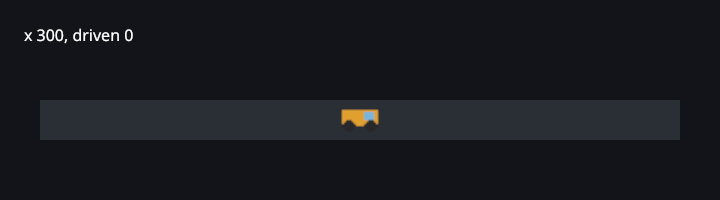
And a C# test checks the input path itself, holding the right arrow for 30 ticks through the same live-control operation a script would use. The key goes through the action map, the view and the command, as a player’s would. Its project file, global.json and the game’s <Compile Remove="tests/**" /> are set up as in Test a game from C#:
using OneGame.Testing;

namespace Rover.Tests;

public class InputTests
{
    [Fact]
    public void HoldingTheRightArrowDrivesForward()
    {
        using var cluster = TestCluster.Start(new RoverGame(), new TestOptions { Width = 640, Height = 360 });
        var client = cluster.Client;

        client.Call("input_key", """{"key":"ArrowRight","action":"down"}""");
        client.Step(30);
        client.Call("input_key", """{"key":"ArrowRight","action":"up"}""");
        client.Step(10);

        Assert.Equal("120", client.Get("Rover", "X"));
        Assert.Equal("0", client.Get("Rover", "Throttle"));
    }
}
onegame testPASS drive (52 ms, tick 50, hash a43855f95aa3e124) PASS track (365 ms, tick 1, hash 87fe1977456659ec) 2 passed, 0 failed Running tests from /tmp/games/rover/tests/bin/Debug/net10.0/Rover.Tests.dll (net10.0|x64) /tmp/games/rover/tests/bin/Debug/net10.0/Rover.Tests.dll (net10.0|x64) passed (291ms) Test run summary: Passed! total: 1 failed: 0 succeeded: 1 skipped: 0 duration: 468ms unit tests: 1 passed, 0 failed, 0 skipped
None of this needed a window. onegame run without --headless opens one.
What doesn’t map
- Your own render loop.
Draw2Dcovers sprites, sprite sheets, shapes, text and a following camera. Parallax layers and custom-shaded sprites go throughd.Sceneand a hand-builtSprite; tilemaps and post-processing go through the lower-levelRenderer2D, and a game can supply its own stage withGameDefinition.CreateRenderStage. The guides on this site don’t cover that lower level yet. - Physics. There is no physics engine. Collision and movement are your own sim code, in
intorFixedmath. - An ECS. onegame isn’t one. Entities are classes that hold their own state and logic. For hot loops over many rows there are
[HotData]struct-of-arrays tables. - Platforms. From the NuGet packages, onegame exports for Linux (including the Steam Deck), Windows and macOS. Web, Android and iOS exports need an engine checkout at 1.2.0. MonoGame lists Android, iOS and, for authorized developers, consoles (MonoGame 3.8.6 README). onegame’s docs don’t cover consoles.
- Mutable state anywhere. If your MonoGame code changes state from
Drawor from an input callback, that is the part to restructure: in onegame it becomes a command.
Coming from FNA, the map is the same: FNA reimplements the XNA 4.0 API that MonoGame also follows. For a side-by-side of MonoGame, FNA, KNI, raylib-cs, Stride and Godot, see MonoGame alternatives. To start, follow Getting started, or build a complete small game with sprites, actions and tests in C# game development without an editor.